
Categories
DevOps

Docker for Small Teams: A Practical Setup

Docker clicked for me when I stopped thinking of it as a deployment technology and started thinking of it as a way to check in the development environment alongside the code. A new engineer clones the repo, runs one command, and has the same database version, the same runtime, and the same environment variables as everyone else. No more “works on my machine” investigations that eat an afternoon.

For a small team – say two to eight engineers – you don’t need Kubernetes or a sophisticated orchestration layer. A well-structured Docker Compose setup covers most of what you need for local development and can scale to simple staging environments. Here’s the setup I’ve converged on after using Docker seriously for a few years.

Project structure

Keep Docker configuration at the root of the repo, not buried in a subdirectory. The main files you’ll have:

your-project/
  docker-compose.yml          # shared base
  docker-compose.override.yml # local dev overrides (gitignored)
  docker-compose.staging.yml  # staging-specific overrides
  Dockerfile                  # production image
  Dockerfile.dev              # dev image with hot reload, dev tools
  .env.example                # committed, documents required vars
  .env                        # actual values, gitignored

The split between docker-compose.yml and docker-compose.override.yml is useful: Docker Compose automatically merges them when you run docker compose up without specifying a file. The base file has the service definitions; the override adds volume mounts for hot reload, opens debugging ports, and sets development-only environment variables. New team members copy .env.example to .env, fill in any secrets, and go.

A practical compose file

# docker-compose.yml
services:
  api:
    build:
      context: .
      dockerfile: Dockerfile
    ports:
      - "3001:3001"
    environment:
      - NODE_ENV=production
      - DATABASE_URL=${DATABASE_URL}
    depends_on:
      db:
        condition: service_healthy

  db:
    image: postgres:16-alpine
    environment:
      POSTGRES_USER: ${DB_USER:-app}
      POSTGRES_PASSWORD: ${DB_PASSWORD:-secret}
      POSTGRES_DB: ${DB_NAME:-appdb}
    volumes:
      - db_data:/var/lib/postgresql/data
      - ./db/init:/docker-entrypoint-initdb.d
    healthcheck:
      test: ["CMD-SHELL", "pg_isready -U ${DB_USER:-app}"]
      interval: 5s
      timeout: 5s
      retries: 5

  redis:
    image: redis:7-alpine
    ports:
      - "6379:6379"

volumes:
  db_data:
# docker-compose.override.yml (gitignored)
services:
  api:
    build:
      dockerfile: Dockerfile.dev
    volumes:
      - .:/app
      - /app/node_modules
    environment:
      - NODE_ENV=development
    command: npm run dev

The healthcheck on the database is important. Without it, your API container starts before Postgres is ready to accept connections and you get a confusing startup error. The depends_on: condition: service_healthy syntax waits for the healthcheck to pass before starting the dependent service.

The Dockerfile

Use multi-stage builds for production images. The build stage installs all dependencies and compiles; the production stage copies only what’s needed to run. This keeps images small and avoids shipping dev tools to production.

# Dockerfile
FROM node:20-alpine AS builder
WORKDIR /app
COPY package*.json ./
RUN npm ci --only=production

FROM node:20-alpine AS runner
WORKDIR /app
COPY --from=builder /app/node_modules ./node_modules
COPY . .
EXPOSE 3001
CMD ["node", "dist/index.js"]
# Dockerfile.dev - simpler, prioritizes fast rebuilds
FROM node:20-alpine
WORKDIR /app
COPY package*.json ./
RUN npm install
COPY . .
CMD ["npm", "run", "dev"]

The COPY package*.json ./ before RUN npm install is the standard layer caching trick: Docker only re-runs the install step if package.json or package-lock.json changes. Your day-to-day rebuilds skip the install entirely.

Database migrations

Don’t run migrations inside the application startup. If two instances start simultaneously, you get a race condition. Instead, run migrations as a separate step in your deployment pipeline before the new instances come up:

# in your CI/CD pipeline
docker compose run --rm api npx prisma migrate deploy
docker compose up -d api

For local dev, you can run them on first start via the docker-entrypoint-initdb.d directory mounted into Postgres, but keep them separate from application boot in every other environment.

Useful day-to-day commands

# start everything in the background
docker compose up -d

# follow logs for a specific service
docker compose logs -f api

# run a one-off command in the api container
docker compose exec api npm run db:seed

# rebuild only the api image (after Dockerfile changes)
docker compose build api && docker compose up -d api

# wipe everything including volumes (full reset)
docker compose down -v

One workflow I’ve found useful: add a Makefile at the project root with short targets for common operations. make dev, make reset, make logs. It removes the cognitive load of remembering the right docker compose incantation when you haven’t touched a project in a week.

Avoiding the common pitfalls

Don’t mount the entire project directory in production-like environments – mount only what needs to be editable. Volume mounts bypass the layer cache and make builds unpredictable.

Use named volumes for database data, not bind mounts. Bind mounts to host paths have permission issues on Linux and behave differently on macOS.

Pin image versions in production (postgres:16.2-alpine, not postgres:latest). The official images are updated frequently and latest will eventually pull a version that changes behavior.

The Docker Compose documentation covers the full override merge logic and all service configuration options: docs.docker.com/compose/compose-file. The section on healthchecks is worth reading in full if you’re setting up a multi-service app.
Categories
DevOps

Self-Hosted vs Managed: When to Run Your Own Server

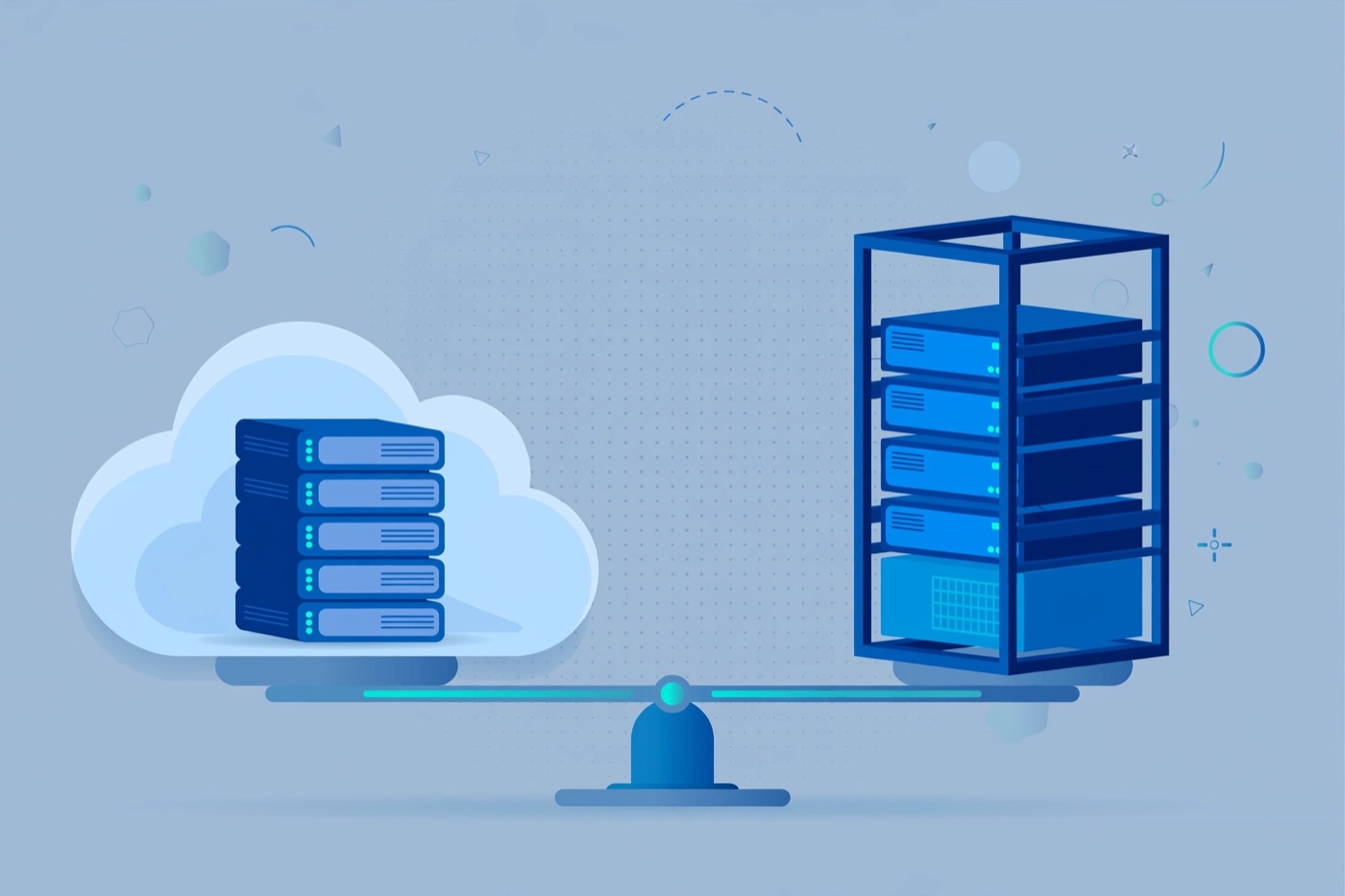
There’s a recurring debate in every developer Slack I’ve been part of: should we run our own servers or pay someone else to manage them? The question used to feel ideological – self-hosting was the principled choice, managed was for people who didn’t want to learn operations. These days I think about it differently. It’s a pure cost-of-attention calculation, and the answer changes based on your team size, traffic shape, and what you’re actually building.

I’ve run both. For a few years I managed bare-metal servers at a small company – enjoyed it, learned a lot, and would not recommend it for a product team that has any other choice. I’ve also watched teams burn weeks on infra problems that a managed service would have handled invisibly. Here’s how I think through the decision now.

What “managed” actually means

Managed services come in several tiers. At the PaaS end (Heroku, Render, Railway, Fly.io), you hand over a Dockerfile or a Git repo and the platform handles OS patching, node provisioning, rolling deploys, and basic scaling. You pay a premium per compute unit but get back dozens of hours you’d otherwise spend on configuration.

Managed databases (RDS, Neon, PlanetScale, Supabase) go further – they handle backups, replication, minor version upgrades, and connection pooling. Running Postgres in a container yourself is not hard, but running it in production with proper backup verification, failover, and monitoring is a different project.

At the IaaS end (EC2, Hetzner Cloud, DigitalOcean Droplets) you get raw VMs and own everything above the hypervisor. This isn’t “self-hosted” in the traditional sense – you’re still renting compute – but the operational burden is much closer to owning hardware than it is to using a PaaS.

The real cost of running your own infrastructure

People usually compare managed vs. self-hosted on the monthly invoice. That comparison misses most of the cost. Consider what running your own infrastructure actually requires:

OS and package updates need to happen on a schedule. Unpatched servers are a liability. If you’re running three VMs, that’s manageable with a cron job and some Ansible. If you’re running thirty, it’s someone’s job.

Backups need to exist and need to be tested. “We have backups” and “we have tested restores” are different statements. A managed database that runs daily snapshots and lets you restore to a point in time with two clicks is not a luxury – it’s risk management.

Incident response is yours when you own the infrastructure. At 2am, the on-call person debugging a disk-full PostgreSQL crash would rather be debugging your application than the infrastructure underneath it.

# example: simple ansible playbook to keep a fleet of Ubuntu servers updated
- name: Apply security patches
  hosts: all
  become: true
  tasks:
    - name: Run apt upgrade
      apt:
        upgrade: safe
        update_cache: true
        cache_valid_time: 3600

    - name: Remove unused packages
      apt:
        autoremove: true
        purge: true

This kind of automation is table stakes if you’re managing your own nodes. It’s not complicated, but it takes time to build and test.

When self-hosting wins

Cost at scale is the most common legitimate reason. If you’re running hundreds of compute-hours per day, the managed premium adds up to real money. At that point you also have an ops team, and the labor cost of running your own infrastructure is amortized over enough value that it makes sense.

Data residency and compliance requirements sometimes force the issue. Some contracts require data to stay in a specific jurisdiction, in an environment you control and can audit. A shared PaaS with multi-tenant underlying infrastructure may not satisfy those requirements.

Specific hardware needs push you off managed options. GPU workloads, high-memory single-node jobs, bare-metal for latency-sensitive networking – managed options exist but are limited, expensive, or both.

Some open-source software runs better self-hosted than it does on a managed equivalent. I’ve seen this with Elasticsearch clusters in particular – the managed versions add overhead and limit configuration in ways that matter at high query volumes.

When managed wins

Almost every other case. If you’re a team of one to five engineers building a product, your time is the scarcest resource. Every hour spent on infrastructure is an hour not spent on features or customers.

Early-stage products especially benefit from managed services because the traffic shape is unpredictable. A PaaS that scales to zero when there’s no traffic and up when there is costs nothing at low usage and doesn’t require you to provision capacity in advance.

Managed databases have become particularly good. Neon’s branching model (a separate DB branch per pull request, created automatically) is something you’d spend weeks building yourself. PlanetScale’s schema migration tooling eliminates the “migrate a production database with zero downtime” class of problem. These aren’t just convenience features – they change how you work.

A practical decision framework

I use a rough checklist:

– Is the monthly managed cost less than four hours of engineering time? Use managed, no discussion.
– Does a specific compliance requirement force self-hosting? Document it, then self-host intentionally with proper automation.
– Are you running more than 20 nodes? You should have infrastructure tooling (Terraform, Ansible, or a platform team) regardless of whether they’re managed or not.
– Is the thing you want to self-host something you could recover from a complete failure in under an hour? If not, reconsider.

The Hetzner Cloud documentation has useful pricing comparisons if you’re evaluating the cost side of this: hetzner.com/cloud. For managed Postgres specifically, Neon’s docs explain their branching model well: neon.tech/docs/introduction.

The answer to “should I self-host?” almost always comes down to: how much infrastructure headcount do you have, and what are you actually optimizing for? Most teams should default managed and revisit the question when the costs become genuinely significant.